

trace_id.
Step 1: Choose a project and enable the BigQuery API
- Open the Google Cloud Console and create or select a project.
- Copy the project ID (not the project name). It is the lowercase identifier shown in IAM & Admin > Settings.
- In APIs & Services > Library, search for BigQuery API and click Enable.
Step 2: Create the dataset
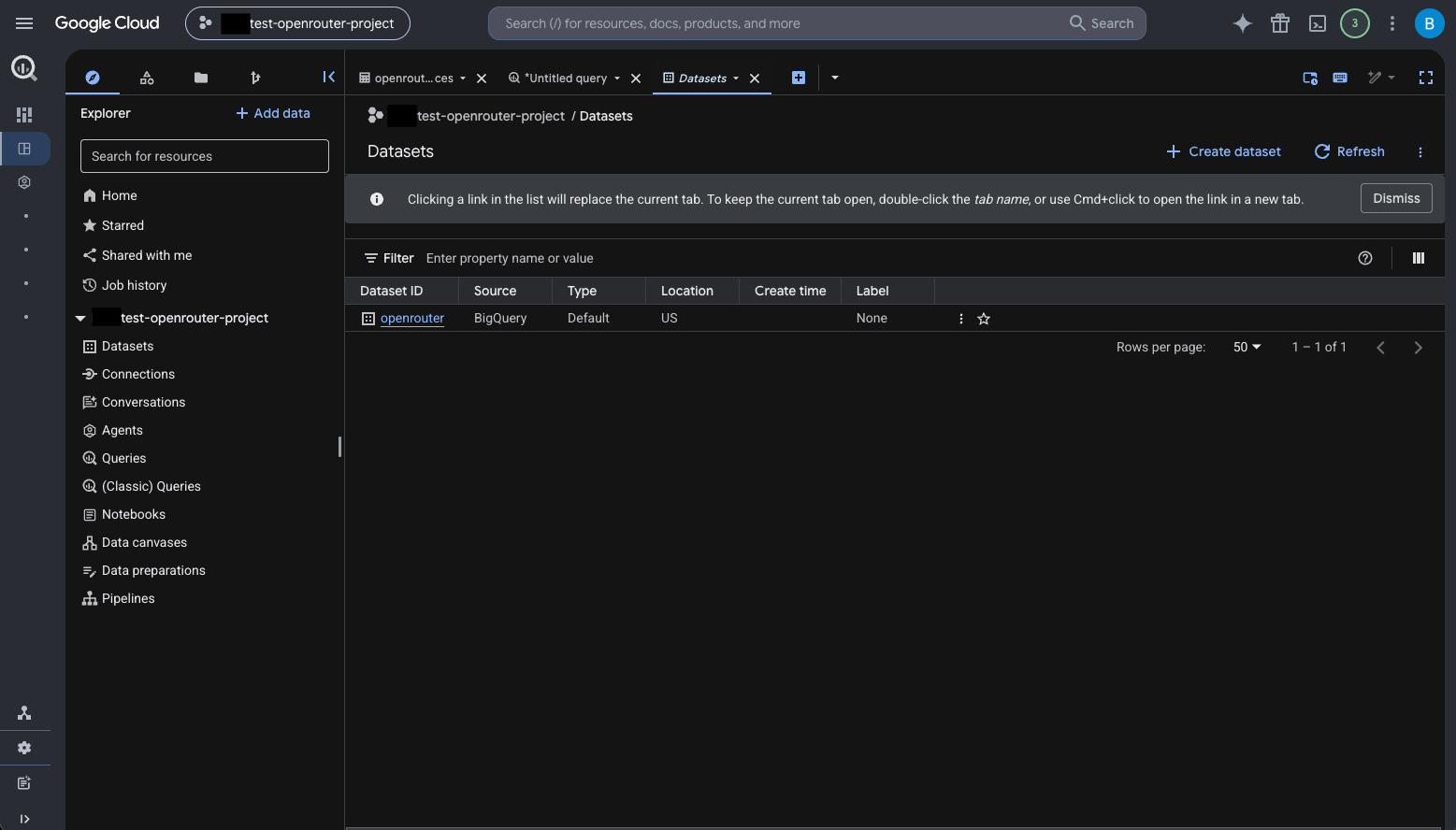
- Open BigQuery > Explorer, select the project, and choose Create dataset.
- Choose a dataset ID, such as
openrouter. - Choose the dataset location carefully. A dataset’s region cannot be changed after creation, so pick a location allowed by your data-residency requirements.
Step 3: Create the traces table
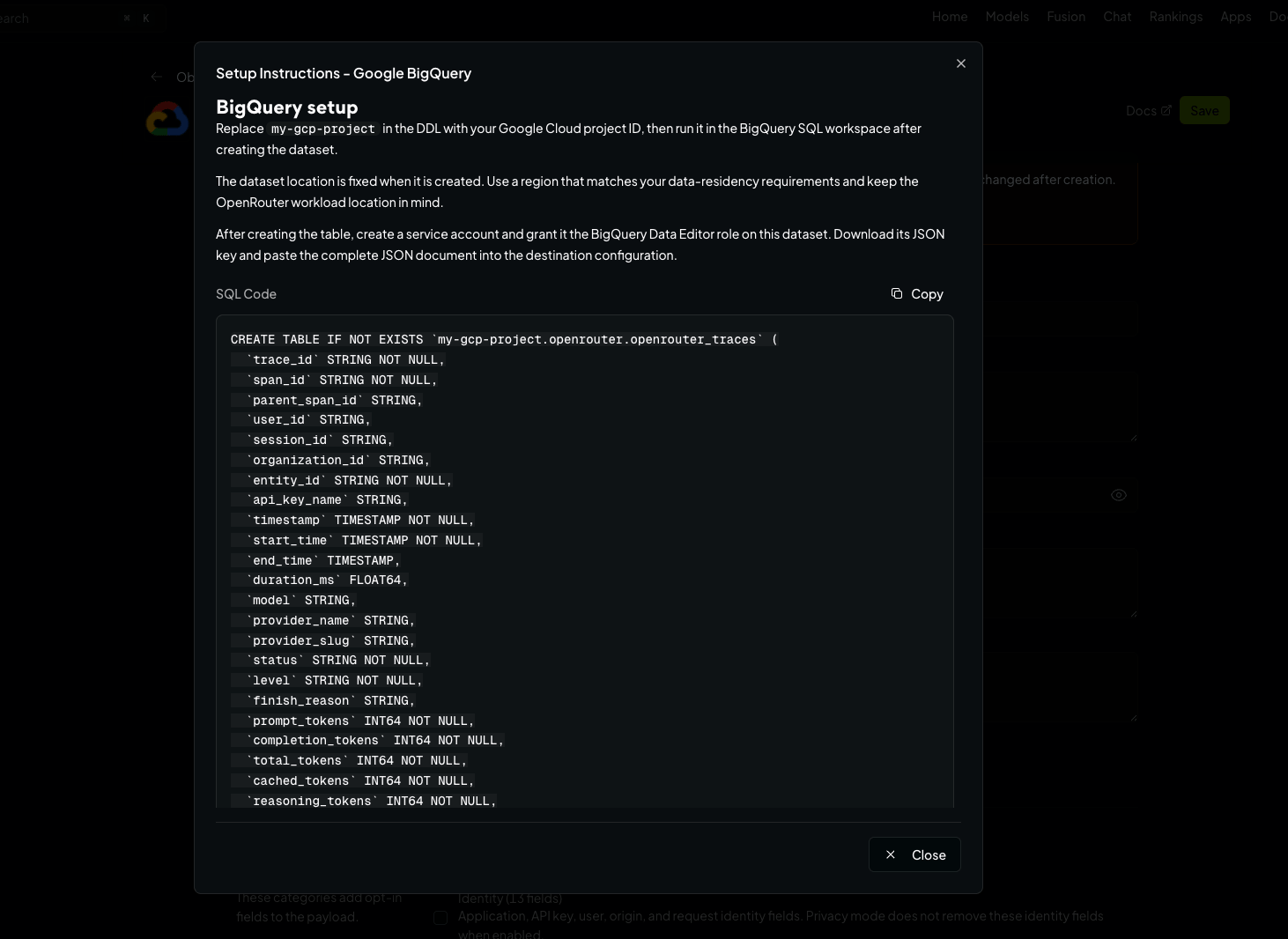
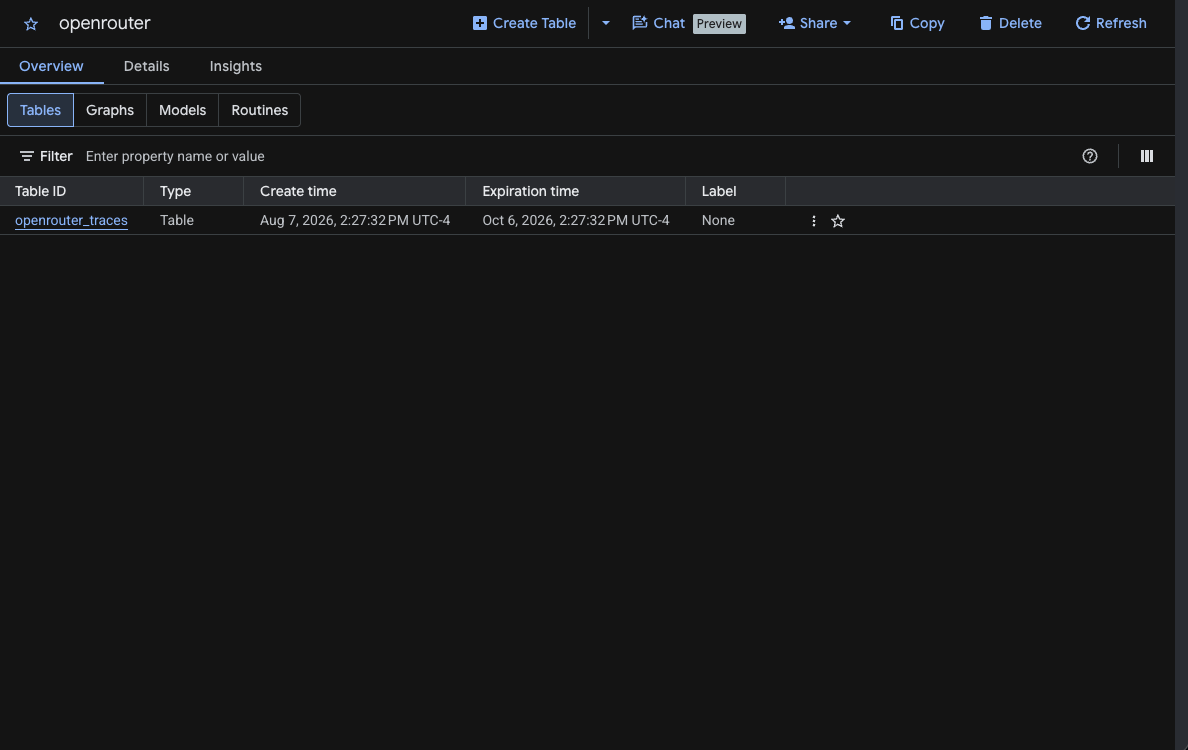
Create theopenrouter_traces table in your dataset. You can find the exact SQL in the OpenRouter dashboard when configuring the destination — click View Setup Instructions. Replace my-gcp-project in the DDL with your project ID (and the dataset or table IDs if you chose different ones), then run it in the BigQuery SQL workspace:
Step 4: Create a service account
- Open IAM & Admin > Service Accounts in the project and click Create service account (e.g.,
openrouter-broadcast). - Grant it the BigQuery Data Editor role on the trace dataset (not at the organization or project level): open the dataset’s menu in BigQuery, choose Share > Permissions, add the service account email, and select BigQuery Data Editor. Do not grant BigQuery Job User — this destination uses streaming inserts and does not create query jobs.
- Open the service account’s Keys tab, choose Add key > Create new key, select JSON, and download the key.
Step 5: Enable Broadcast in OpenRouter
Go to Settings > Observability and toggle Enable Broadcast.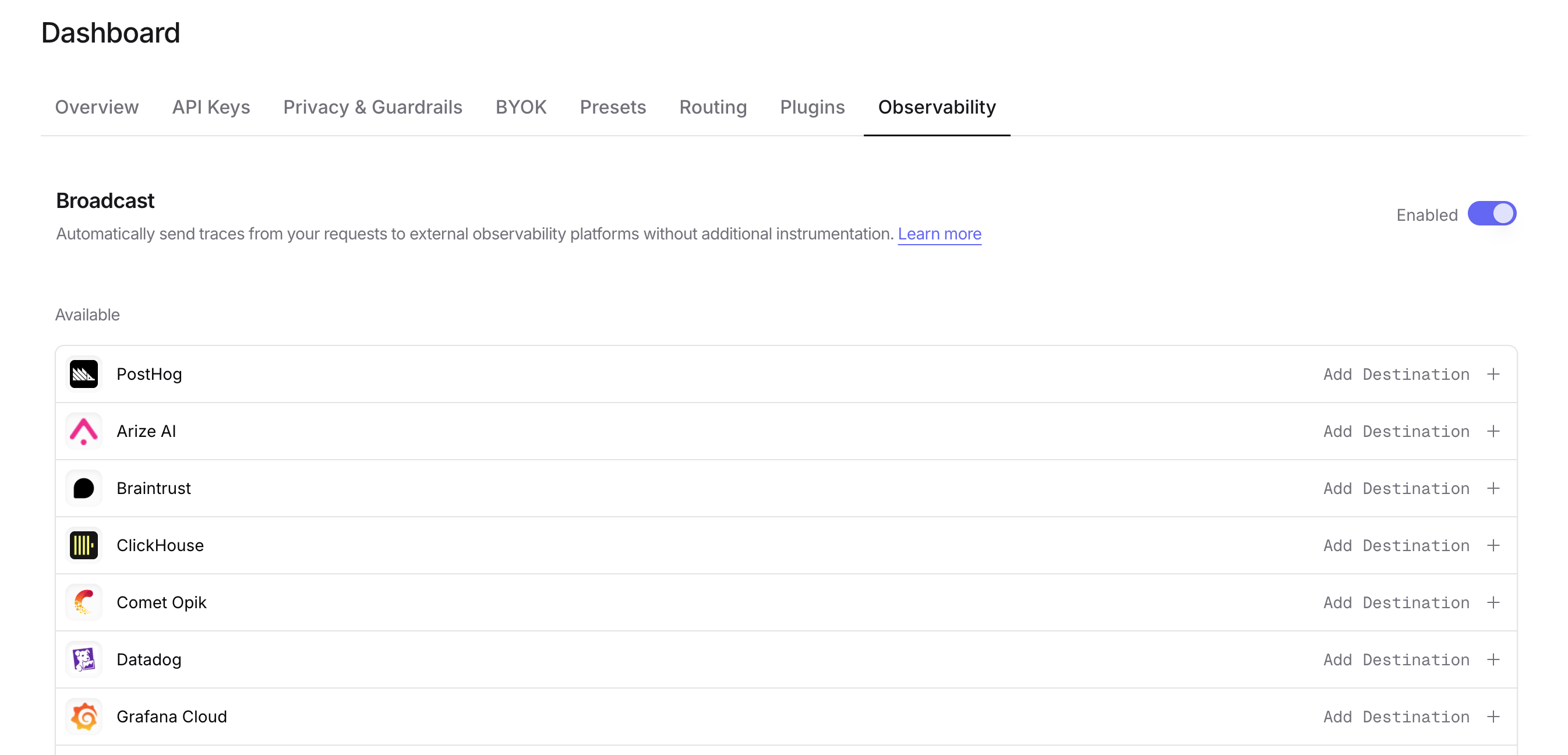
Step 6: Configure BigQuery
Click the edit icon next to Google BigQuery and enter: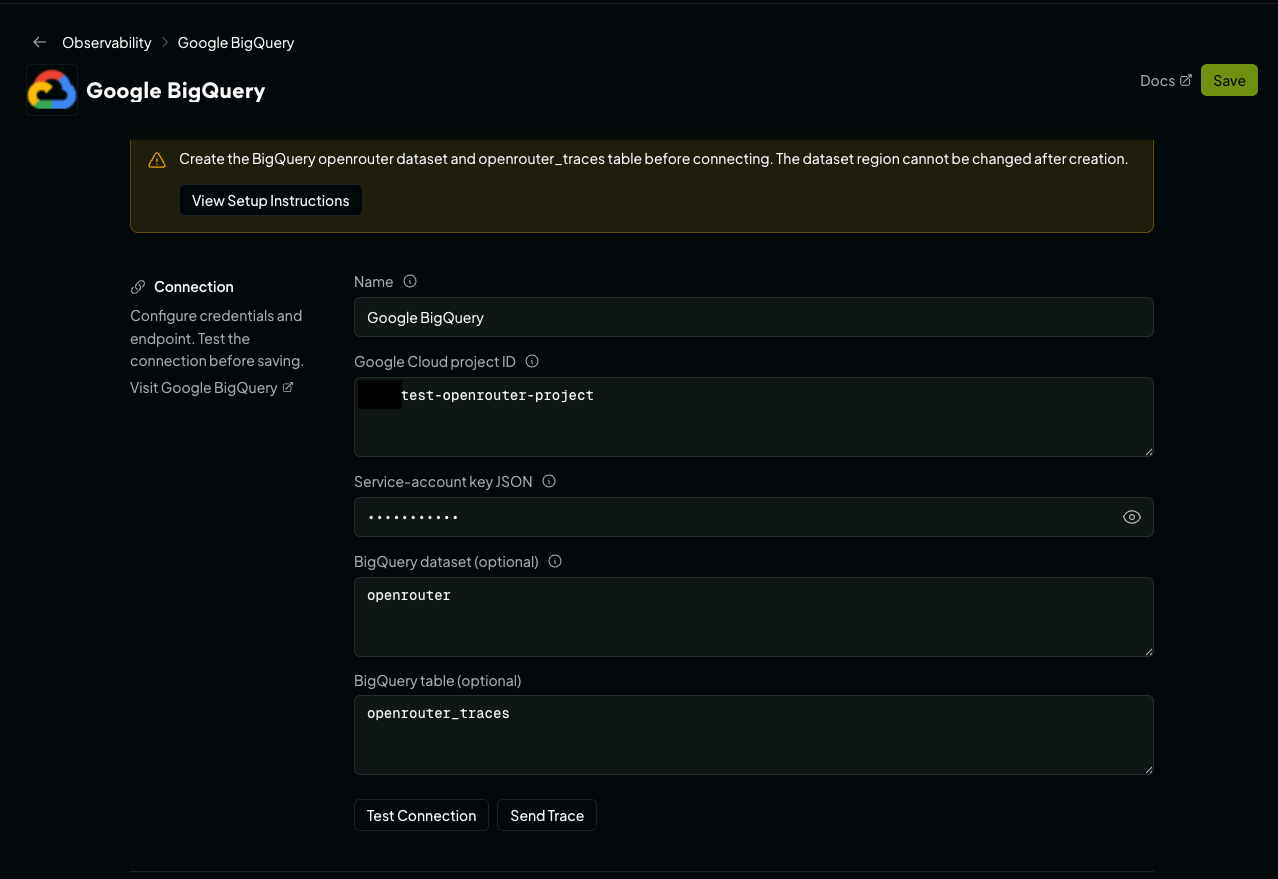
- Google Cloud project ID: The project ID containing the dataset.
- Service-account key JSON: The complete contents of the downloaded JSON key file.
- BigQuery dataset: The dataset ID created above (default:
openrouter). - BigQuery table: The table ID created above (default:
openrouter_traces).
Step 7: Test and save
Click Test Connection to verify the setup. The connection test reads the table’s metadata to verify the project, dataset, table, and credentials, then checks that the credentials hold the row-insert permission, so read-only access fails the test rather than failing on every later trace. The configuration only saves if the test passes.Step 8: Send a test trace
Click Send Trace, or make an API request through OpenRouter, and query your BigQuery table to verify the trace was received: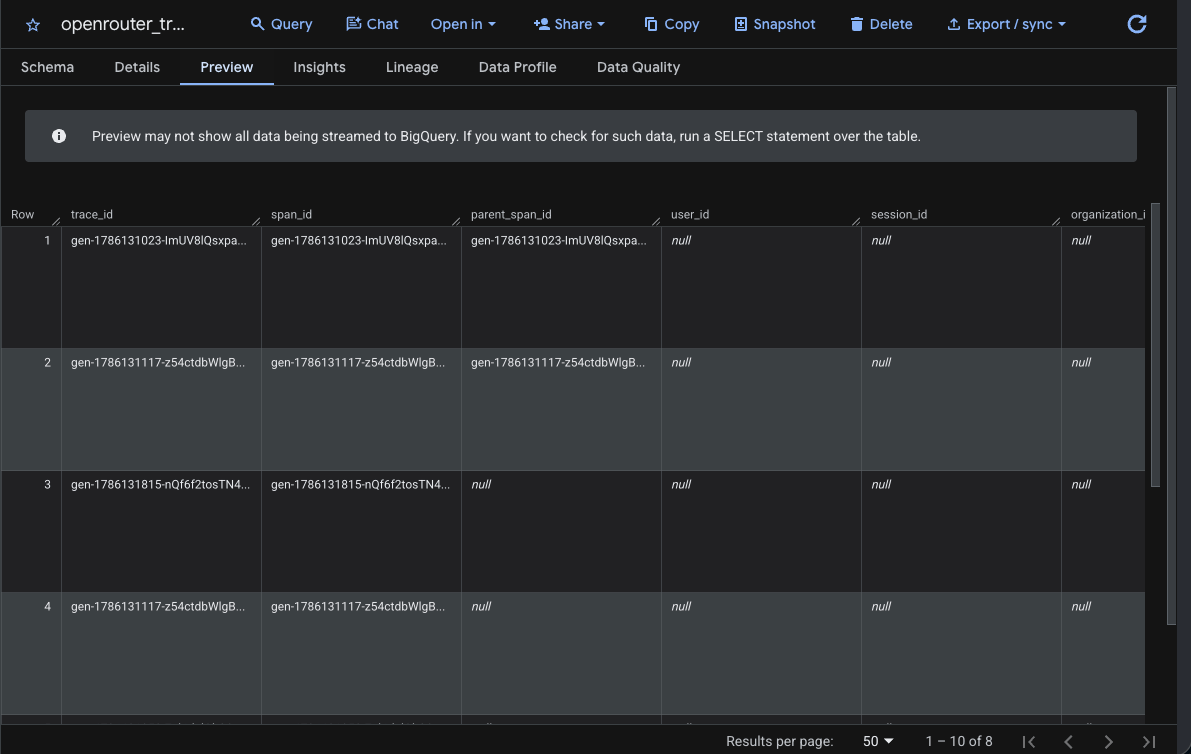
Example queries
Cost analysis by model
User activity analysis
Error analysis
Provider performance comparison
Usage by API key
Accessing JSON columns
Theattributes, input, output, metadata, model_parameters, and resource_attributes columns are JSON typed. Use BigQuery’s JSON functions to query nested fields:
Schema design
Typed columns
The schema extracts commonly-queried fields as typed columns for efficient filtering and aggregation:- Identifiers:
trace_id,user_id,session_id, etc. - Timestamps:
TIMESTAMPcolumns for time-series analysis - Model Info: For cost and performance analysis
- Metrics: Tokens and costs for billing
JSON columns
Less commonly-accessed and variable-structure data is stored inJSON columns:
- attributes: Full OTEL attribute set
- input/output: Variable message structures
- metadata: User-defined key-values
- model_parameters: Model-specific configurations
tags column is a repeated STRING column (ARRAY<STRING>). Use BigQuery’s JSON_VALUE and JSON_QUERY functions to query the JSON fields.
Custom Metadata
Custom metadata from thetrace field is stored in the metadata JSON column. You can query it using BigQuery’s JSON functions.
Supported Metadata Keys
Example
Querying Custom Metadata
Additional Context
- The
userfield maps to theuser_idtyped column - The
session_idfield maps to thesession_idtyped column - All custom metadata keys from
traceare stored in themetadataJSON column for flexible querying
Troubleshooting
- Project not found or permission denied: Confirm that the configured project ID is the project containing the dataset and that the service account belongs to the expected project.
- Table not found: Confirm the dataset and table IDs and that the table was created in the configured dataset location.
- 403 permission denied: Grant the service account BigQuery Data Editor on the dataset. Project-level access may be restricted by organization policy, so verify the dataset permission directly.
- 400 invalid or schema mismatch: Compare the table schema with the DDL from the setup instructions. In particular, timestamps must be
TIMESTAMP, nested trace fields must beJSON, andtagsmust beARRAY<STRING>.